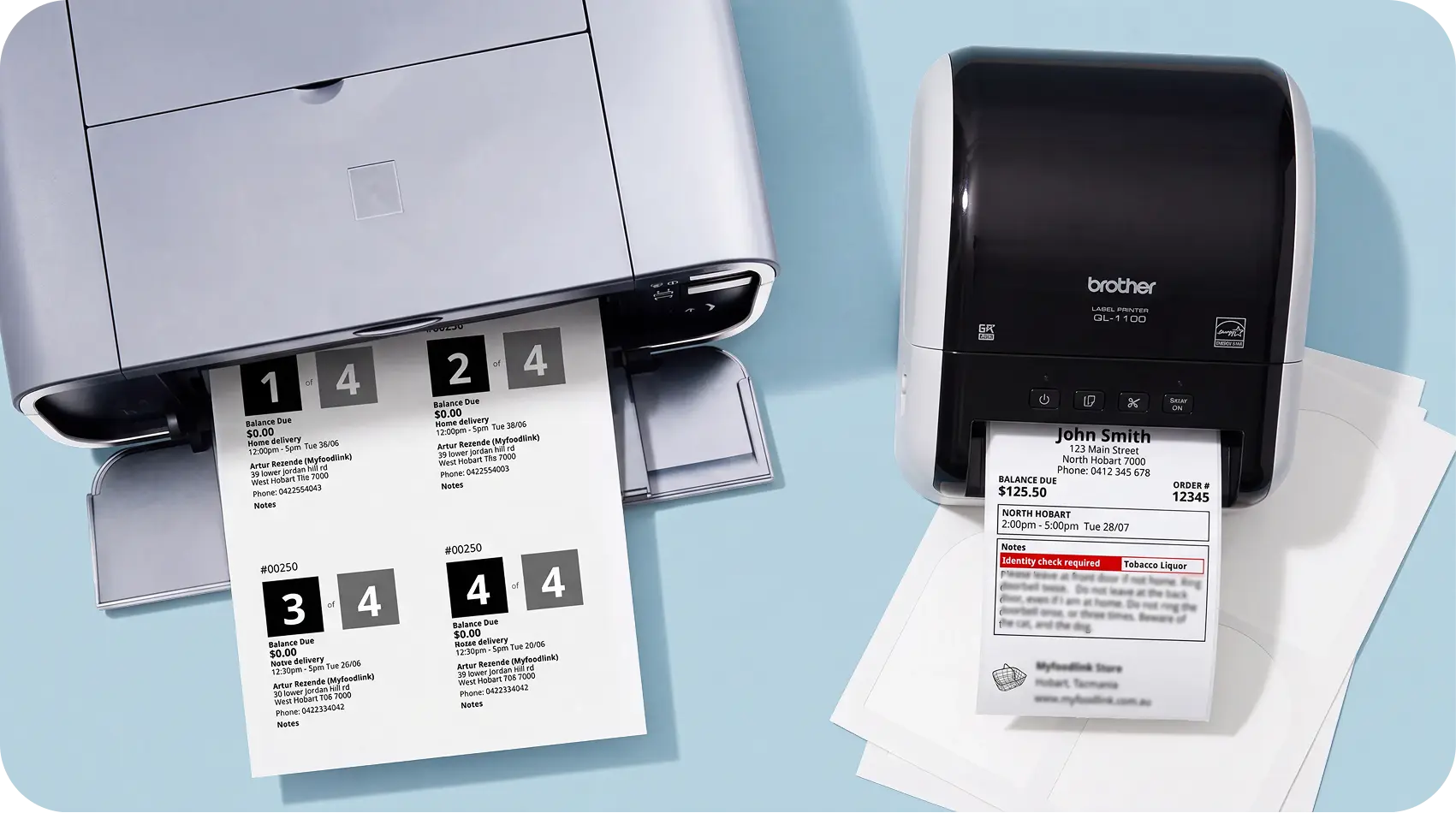
The label on a home delivery or click-and-collect order is doing more work than it looks. It tells your picking team which order it belongs to, and it often travels all the way to the customer's door. Get the format wrong for your printer and you end up trimming sheets by hand, printing four labels to use one, or squinting at a sticker that's too small to read.
Myfoodlink builds ecommerce and fulfilment tools specifically for grocery and liquor retailers in Australia and New Zealand, and Box Label Configurations is one of the settings that comes with that. Now live under Settings > Box Label Configurations in your backoffice, it lets you choose exactly which label formats your store uses, and build your own with your branding and choice of content.
Label formats, matched to your printer
- 1-up box labels: one label per printed page. Suits dedicated label printers, like a Brother label printer, that print one label at a time.
- 2-up box labels, Standard: two labels per sheet, usually printed on an A4 page.
- 4-up box labels, Avery Format: four labels per sheet on an A4 page, sized to match standard Avery label stock. Useful when you're printing labels for several boxes in one go.
- Box Label Custom: a format you build yourself (see below).
Every format has a preview built into the settings page, so you can see exactly what it looks like before turning it on.
Turn on only what your team actually uses
Not every store prints labels the same way. Turning on a format makes it available everywhere staff print labels from: a backoffice order, a tablet picking screen, the Picking App, and so on. There's no separate setting per device. If you enable both 4-up and 1-up, both show up as options in all of those places, and staff pick whichever one suits what's in front of them.
Build your own with Box Label Custom
Box Label Custom isn't just for stores whose printer doesn't match the standard formats. It's a way to add your own branding and choose exactly what information goes on the label.
Logo. Optional. Upload one to appear at the bottom left of the label if you want it there. It needs to be a JPEG or PNG, with black content on a white background. Transparent backgrounds aren't supported.
Custom content. Add your own text to appear alongside the logo.
Content fields. Choose what else appears on the label:
- Number of boxes
- Customer full name
- Customer address
- Order number
- Balance
- Delivery zone and selected time
- Notes
Only the fields you select will show. If a selected field has no data for a given order (no notes on that order, for example) it's left off automatically rather than printing a blank line.
Label size. Start from a 100x150mm or 100x100mm preset. If your printer or label stock doesn't match either exactly, the proportions may still work for your setup. Use the preview and run a test print before rolling the format out to your picking team.
Where to find it
Settings > Box Label Configurations. Turn on the formats you want your store to use. If you want your own branding or a specific set of information on the label, set up a Box Label Custom, preview it, and test print it before your team starts relying on it day to day.
If you're not sure which format suits your printer, or want to see how Myfoodlink's fulfilment tools work for a grocery or liquor store, get in touch with our team.